
Surf Guide
How to Request your Data from Instagram
 \
\
This is a simple step-by-step guide on how to request your data from Instagram. This process allows you to download a copy of your account info.
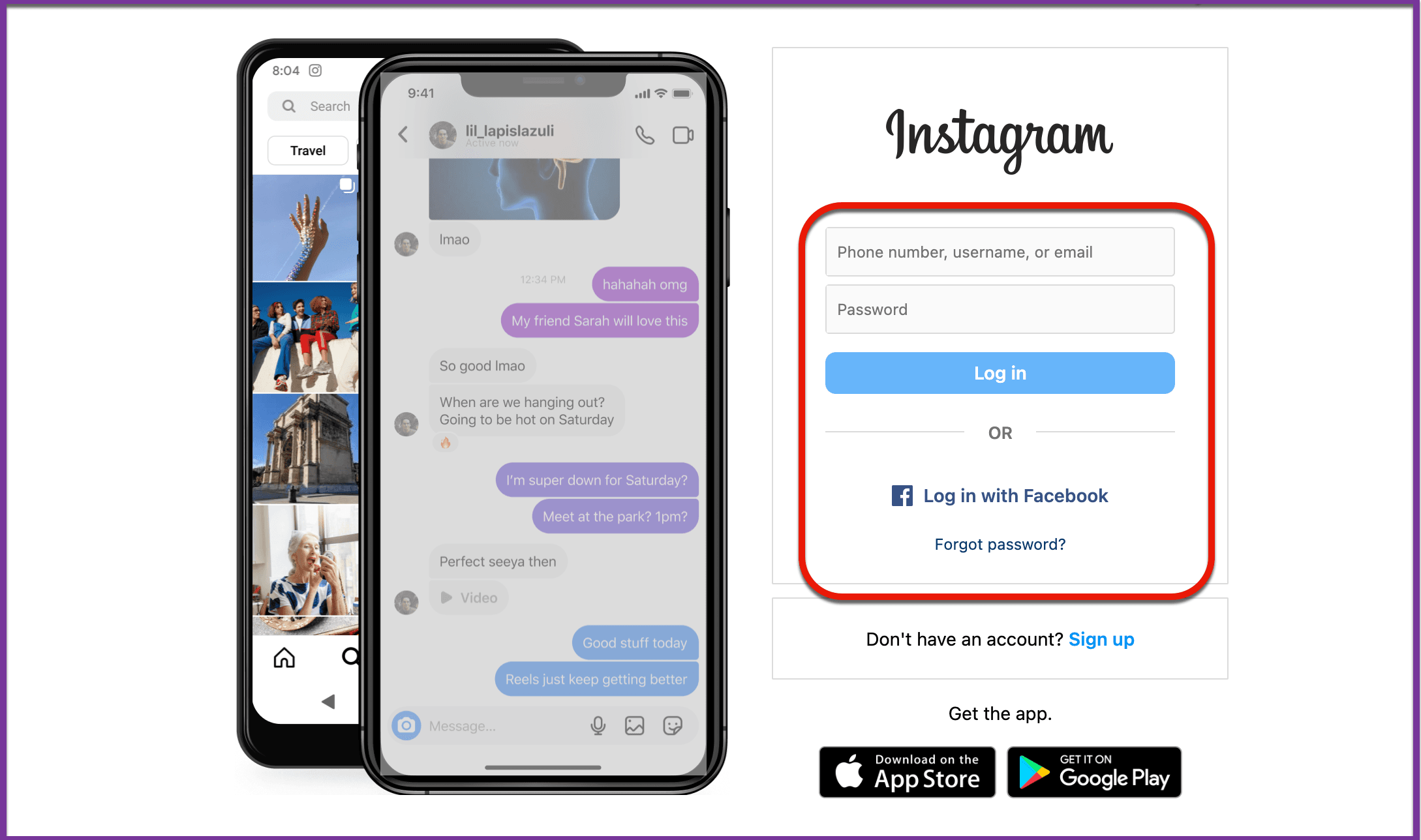
Step 1: Open Instagram
- Open the Instagram app on your device, or go to instagram.com on your desktop.
- Log in to your account if you’re not already logged in.
Step 2: Go to Your Profile
-
On the mobile app, tap on your profile picture at the bottom right to open your profile page, then go into Accounts Center.
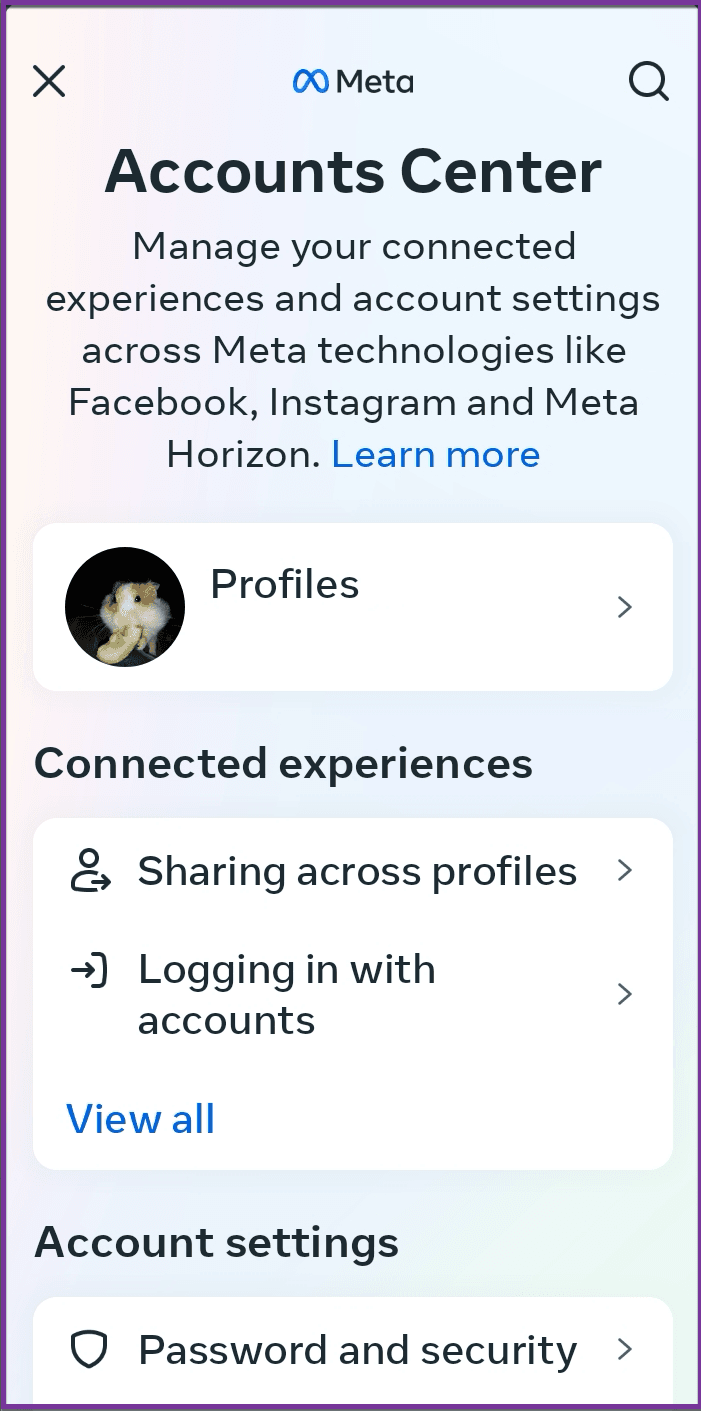
- If you’re using a computer, click on your profile picture at the top right and then select Profile.
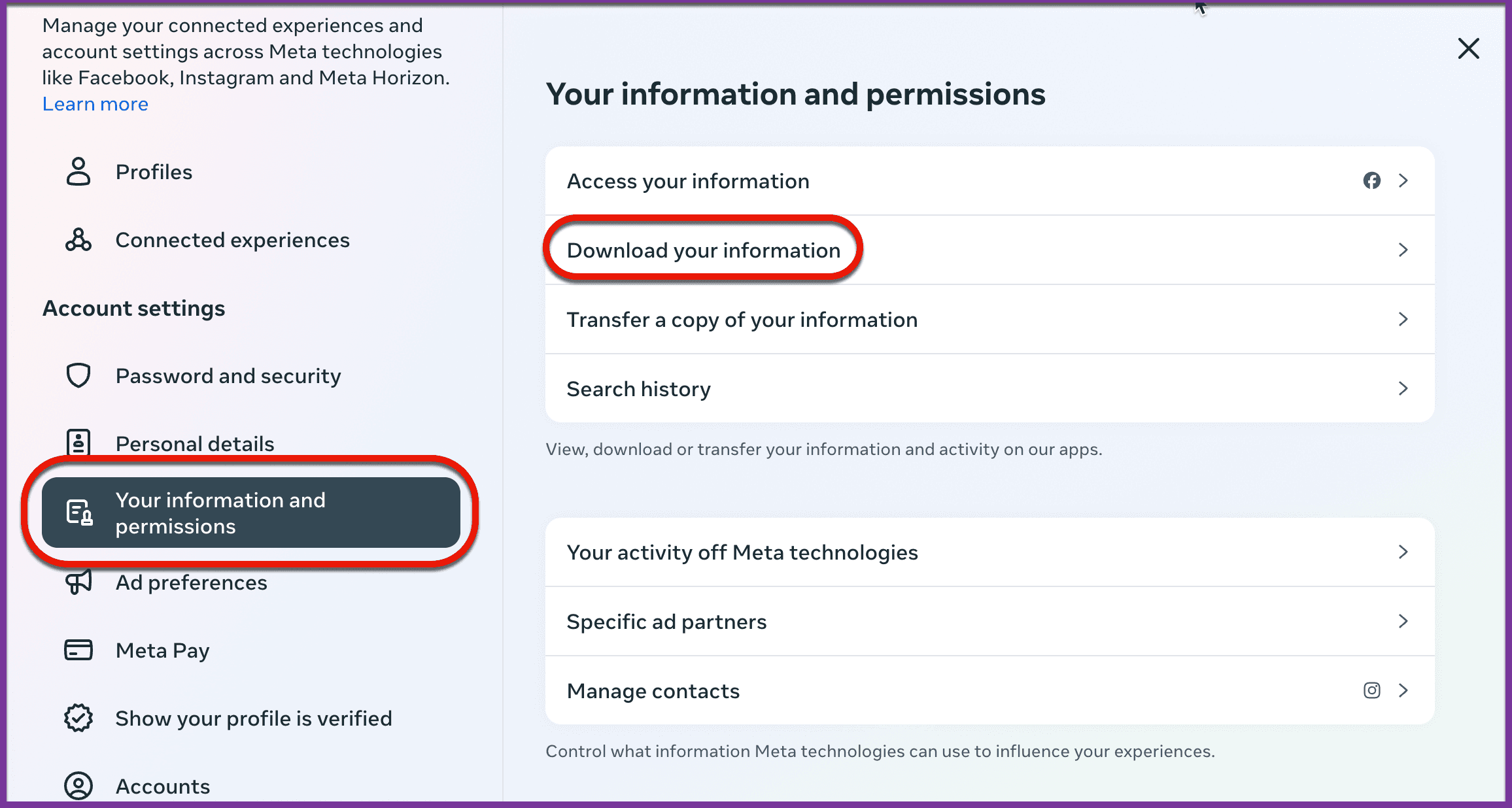
Step 3: Open Settings
- Mobile: Tap the three horizontal lines (hamburger menu) in the top right corner and select Settings and Privacy.
- Desktop: Click on the gear icon (Settings) next to Edit Profile.
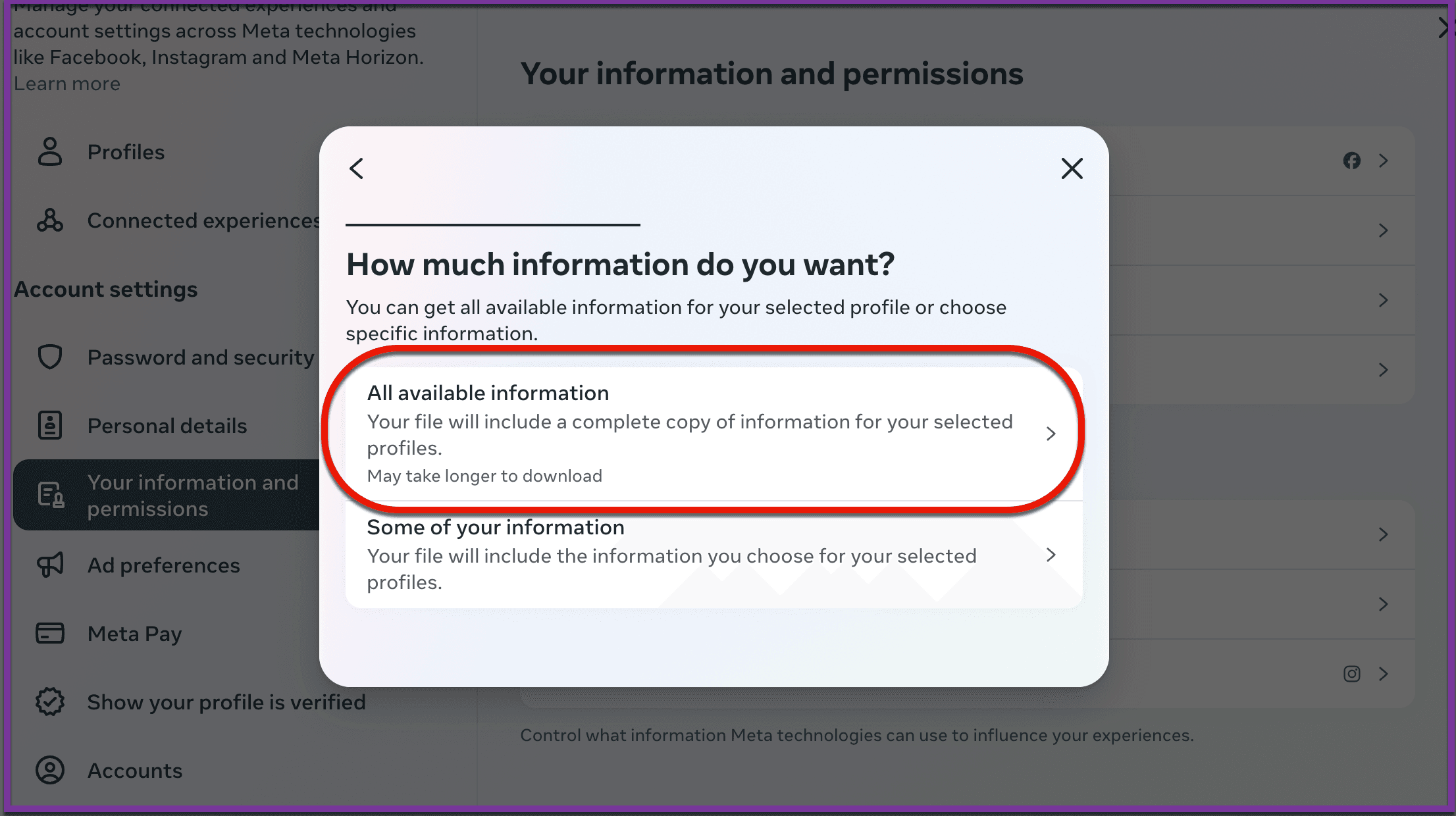
Step 4: Go to “Your Information and Permissions”
- In Settings and Privacy (Laptop/Desktop) or Accounts Center (Mobile Device), scroll down to find Your Information and Permissions.
- Select Download Your Information.
- Instagram will ask you how much information you want to download.
- Select All Available Information.
- Select Download to Device.
- Click on Create Files.
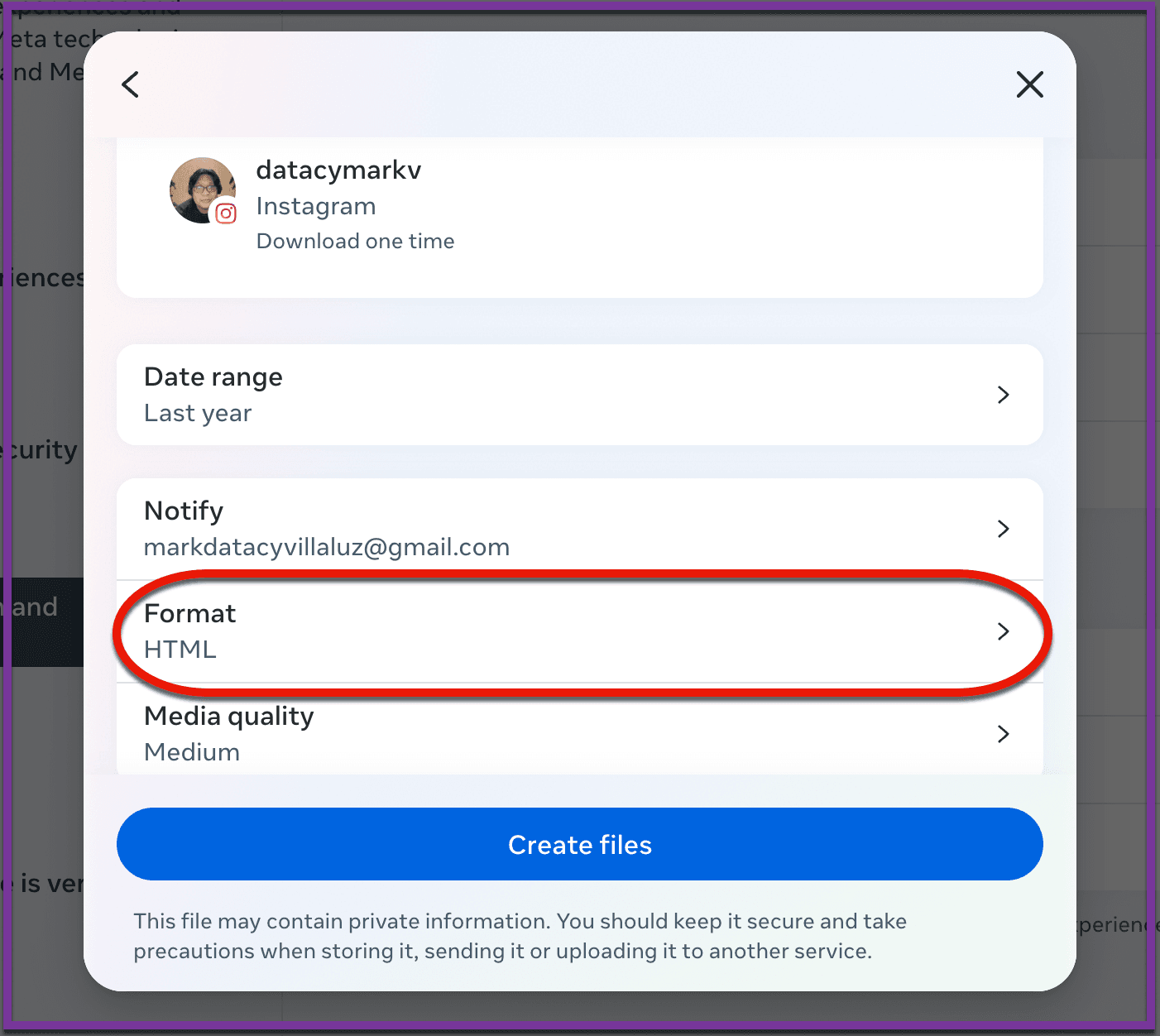
Step 5: Select the File Format
- Click on Format.
- Select JSON.
- Click on Media Quality.
- Select Low.
- Click on Save.
Step 5: Check Your Email
- Instagram will send a notification to the registered email within a few hours (it may take up to 48 hours if you have a lot of data).
Important Notes
- The link is only valid for four days, so be sure to download it within that timeframe.
- The data package may include photos, comments, profile details, messages, and more. It’s a great way to back up your account or review your history on Instagram.
Should you have any questions or suggestions, please get in touch with the Surf Customer Support Team by sending an email to [email protected].