
Surf Guide
How to Download your Data from Grok

Step 1: Open Grok and Access Your Account Settings
- Go to grok.com or open the Grok experience inside your X (Twitter) mobile application. Log in with your credentials.
- Look for your profile icon or picture (usually located in the top corner or sidebar menu) and click or tap on it.
- Select Settings from the menu options.
Mobile users: If you are using the mobile web browser or the X app, tap your profile avatar in the upper-left or top corner to open the main menu sidebar, scroll down, and tap Settings.
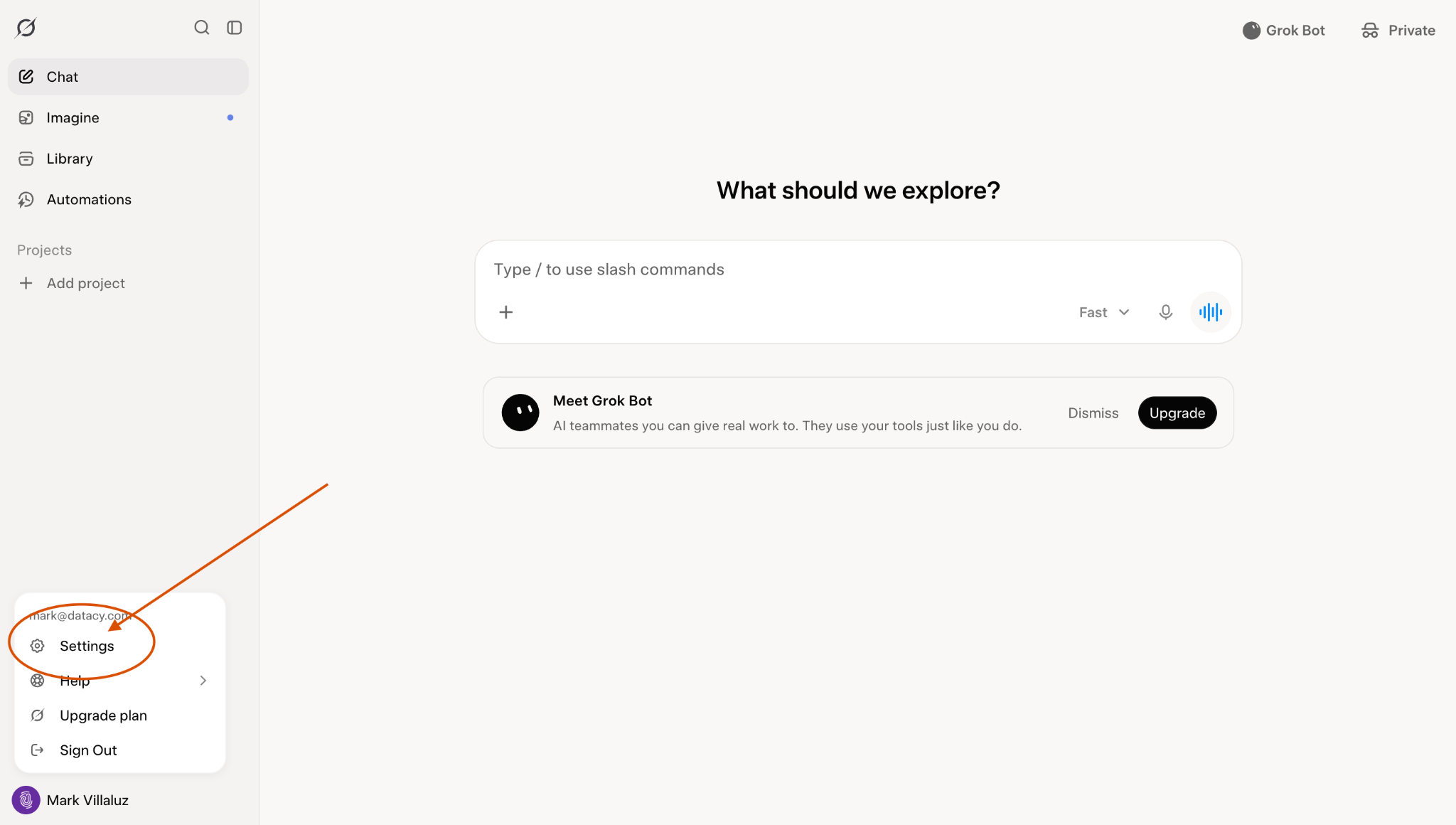
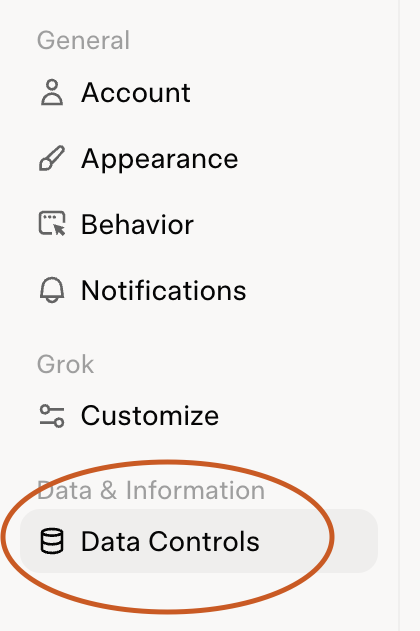
Step 2: Navigate to Data Controls
- Inside the Settings menu, look for a tab or section labeled Data Controls or Data.
- Click or tap to open it.
Mobile users: The Settings page on mobile stacks these categories vertically. Scroll down until you see the privacy and data section.
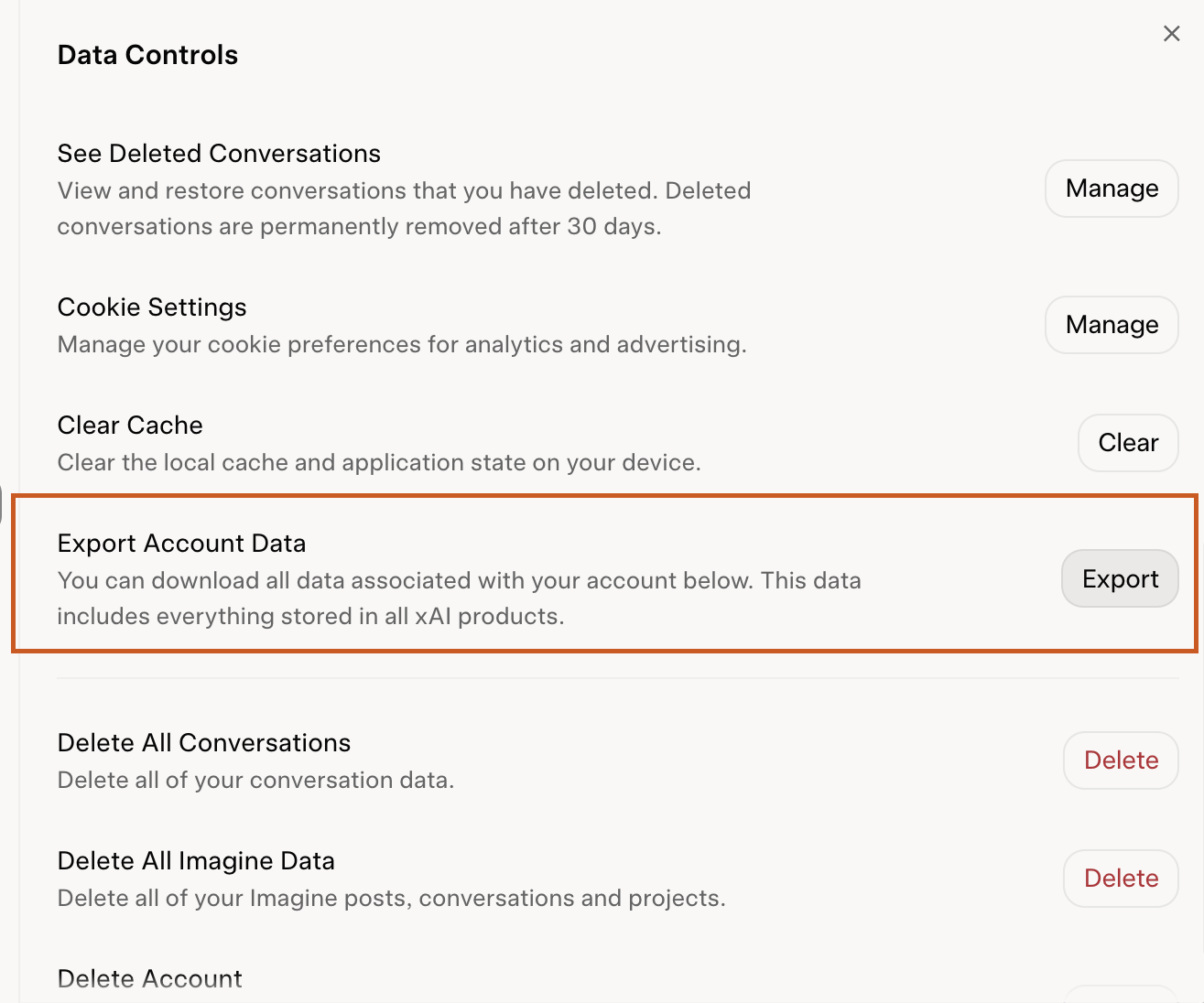
Step 3: Request Your Account Data
- Find the option that says Export Account Data (or Data Export).
- Click or tap the Download or Export button.
- Confirm your request if prompted.
Mobile users: Tap the Export Account Data option right from the mobile screen. Because mobile layouts are compact, the button will typically span the width of your screen; just tap it once to initiate.
Step 4: Check Your Email and Download Your Archive
- xAI will process your request. Depending on how much history or generated media (like Grok Imagine images) you have, this can take anywhere from a few minutes to half an hour.
- Check the email inbox tied to your account for a message from xAI containing your download link.
- Click the link to download your data file.
Mobile users: Open your phone’s email app. Make sure you open the download link in a browser where you are already signed into your xAI/Grok account, or the link may fail to authorize.
Step 5: Access Your Files
Unlike some other platforms that give you a bundle of formatted folders, Grok typically provides your data archive as a structured file (such as a .json file or a .zip archive if it includes generated media) containing your conversation text, logs, and interaction history that you can upload.