Surf Guide
How to Download your data from Gemini
 Your Guide to Downloading Your Gemini Data
Hi there! This guide will walk you through how to download a copy of your Gemini information.
Phase 1: Starting Your Request
- Begin Your Journey: Head to Google Takeout, which is Google’s official data hub. You can go directly here: https://takeout.google.com
- A Fresh Start: On the first menu, you’ll see many Google services listed. To make things easy, click “Deselect all” at the top. This helps us focus only on Gemini.
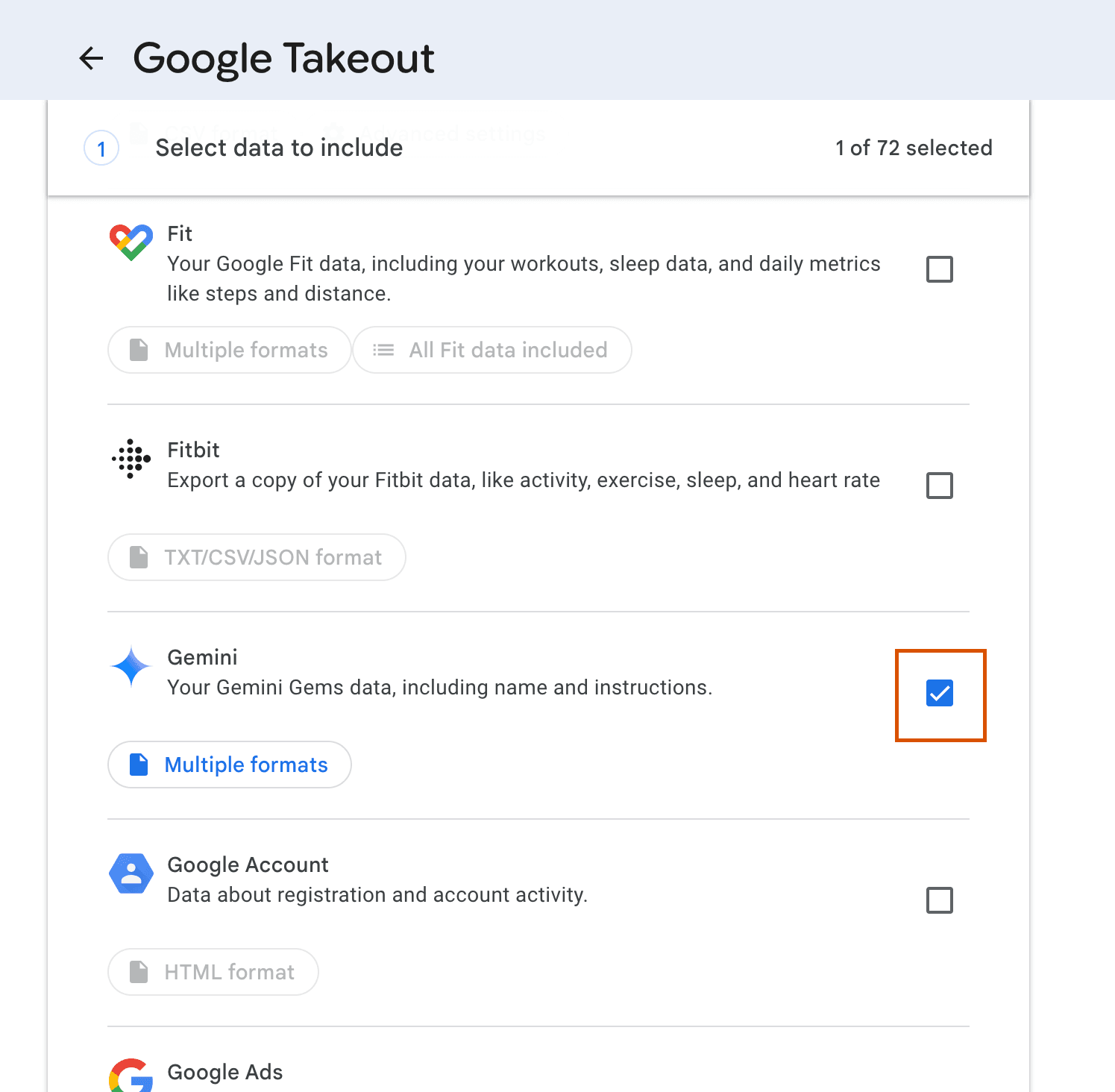
- Find Gemini: Scroll down the list until you find “Gemini”. Once you see it, simply check the box to its right to select it. That’s the only box you need to check for this process.
- Move Forward: Scroll to the bottom of the list and click the blue “Next step” button.
Phase 2: Choosing How to Receive Your Data
You’ll now see a screen titled “Choose file type, frequency & destination.” Don’t worry, we only need to adjust a couple of settings.
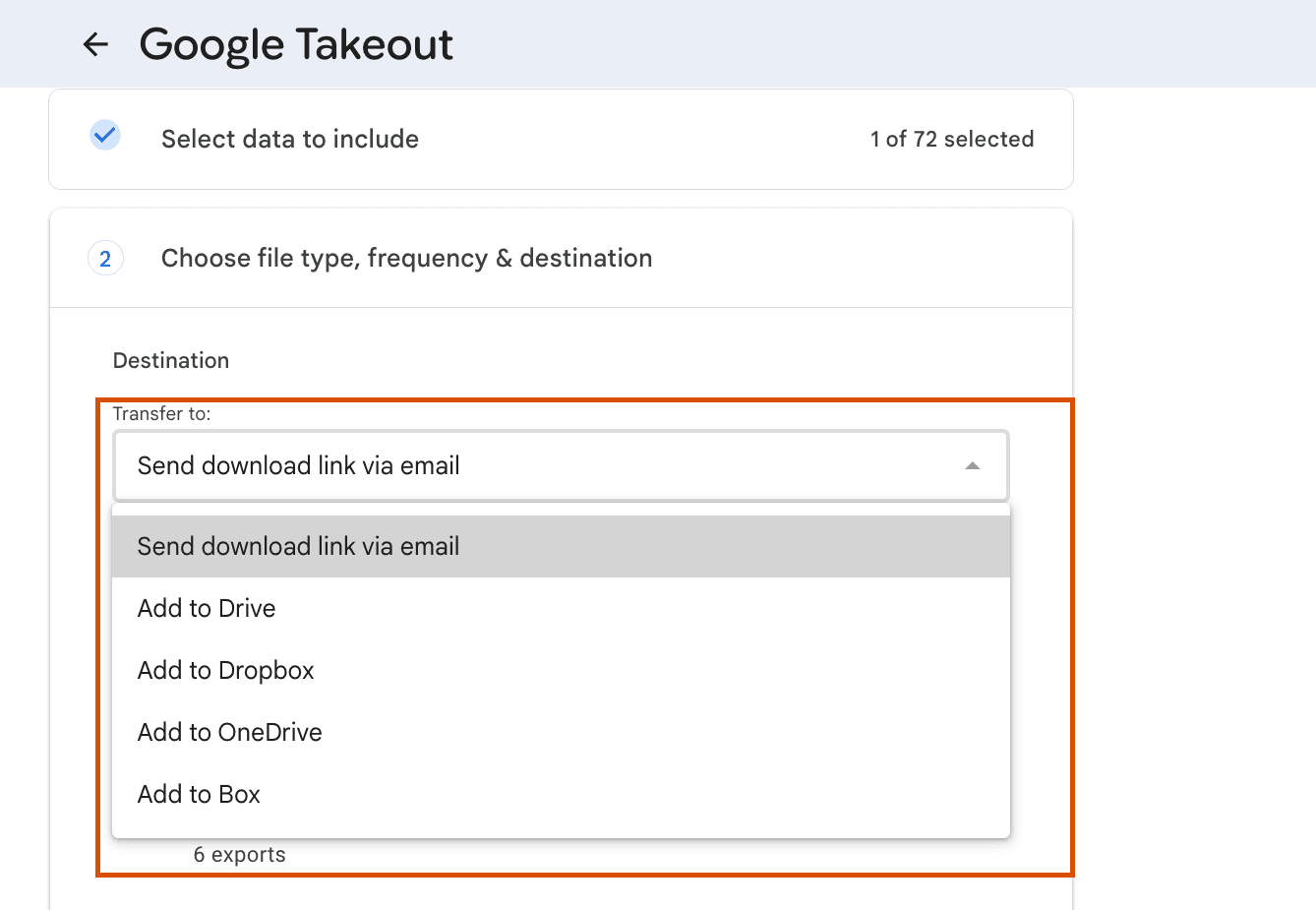
- Delivery Method: Under “Delivery method,” use the dropdown menu. We recommend selecting “Send download link via email” so the link comes right to your inbox. You can choose another option if you prefer.
- Frequency: Please ensure “Export once” is selected. You won’t need to change any other settings here.
- Create the Export: Almost there! Click the “Create export” button on the lower left. Your request is now in Google’s hands!
Phase 3: Waiting & Downloading
- A Little Patience: Google will now prepare your data file. This can take a few hours, or sometimes even a couple of days, depending on how much data there is. You’ll see a progress bar. You can close the page. You’ll get an email when it’s completely ready.
- Check Your Email: Look for an email from Google with the subject “Your Google data archive is ready.” Inside, click the button that says “Manage Google Takeout Request.”
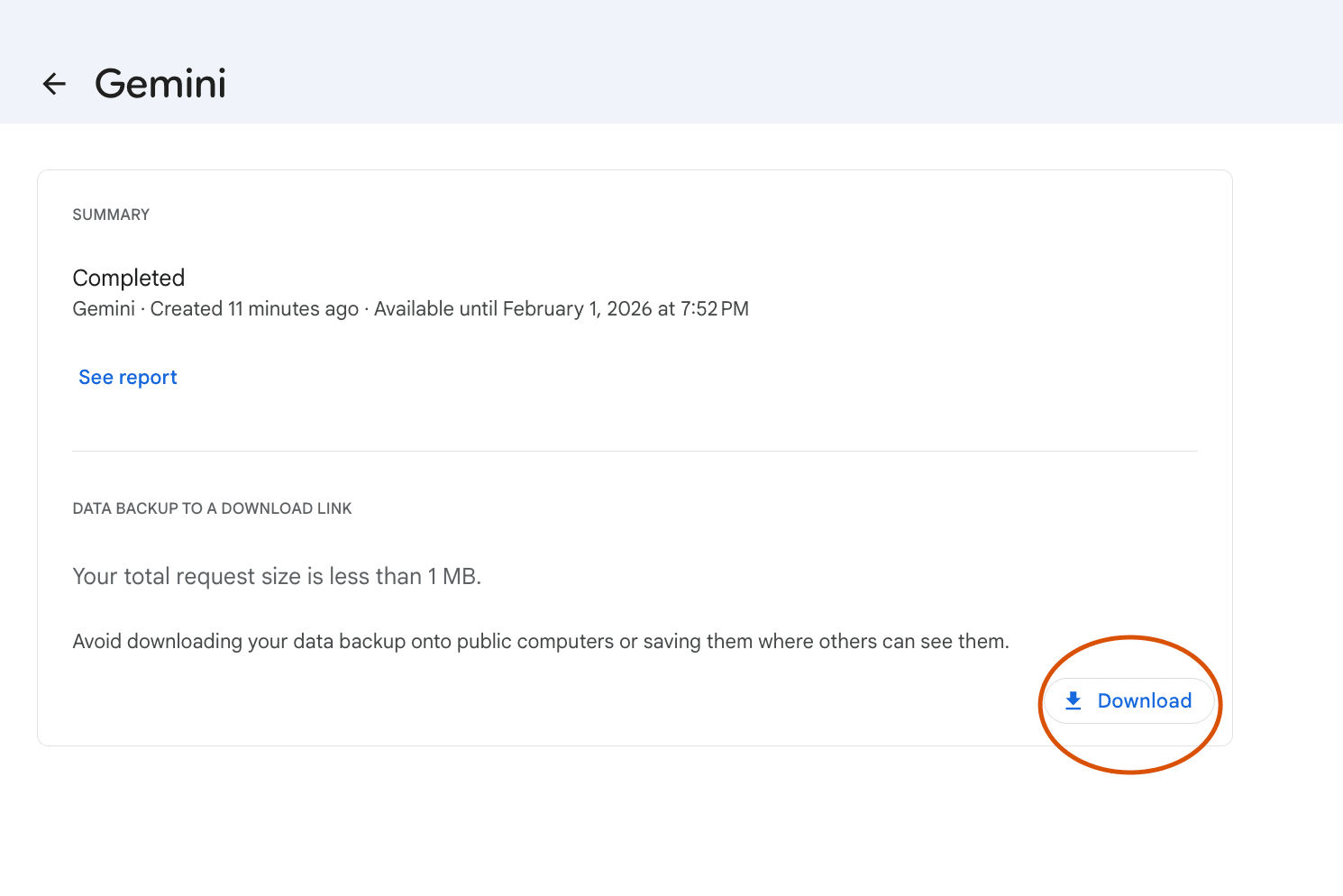
Final Download: This link will take you to a simple page with a big “Download” button. Click it to save the data file (it will be a .zip file) directly to your computer or device.