Surf Guide
How to Download your Data from Claude

Step 1: Open Claude and Access Your Settings
- Go to claude.ai in your web browser and sign in to your account. (Mobile users: Open your mobile browser like Safari or Chrome, head to claude.ai, and make sure you are logged in.)
- Look for your account identifier (your profile initials or picture).
- Click or tap on it to open the menu, then select Settings.
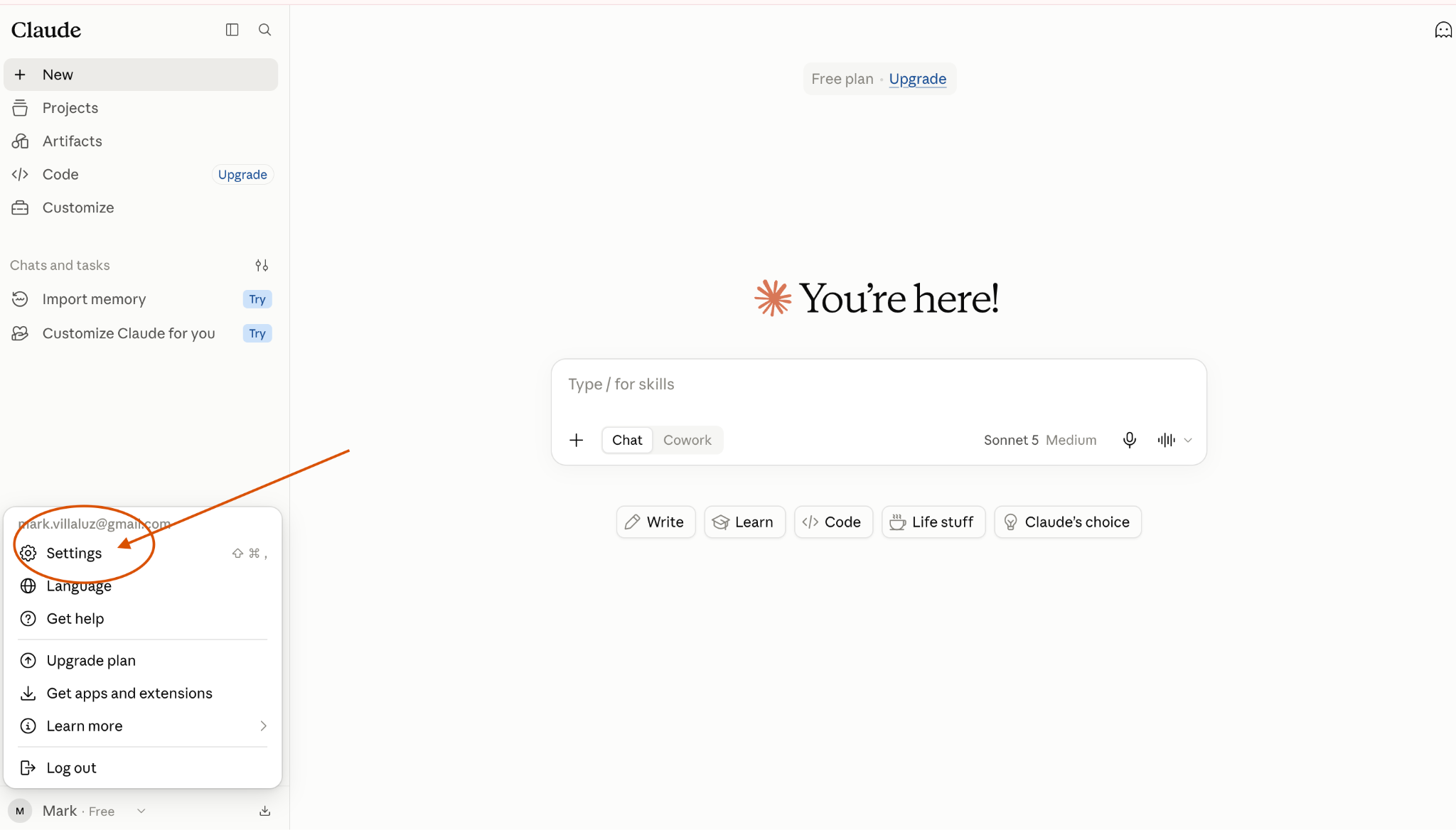
Mobile users: Your initials are typically found in the bottom-left corner of the sidebar, or by tapping the menu icon in the top corner to expand the sidebar first.
Step 2: Navigate to Privacy Settings
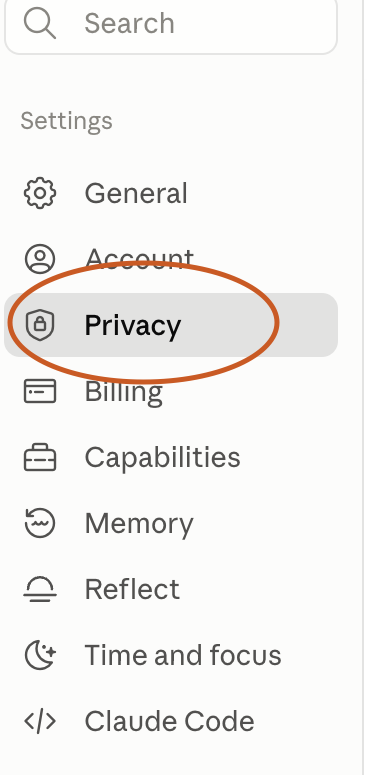
- In the Settings panel, look at the sidebar menu options.
- Click or tap on Privacy.
Mobile users: The settings navigation pane is usually displayed as a list of tabs—scroll or tap to select Privacy.
Step 3: Request Your Data Export
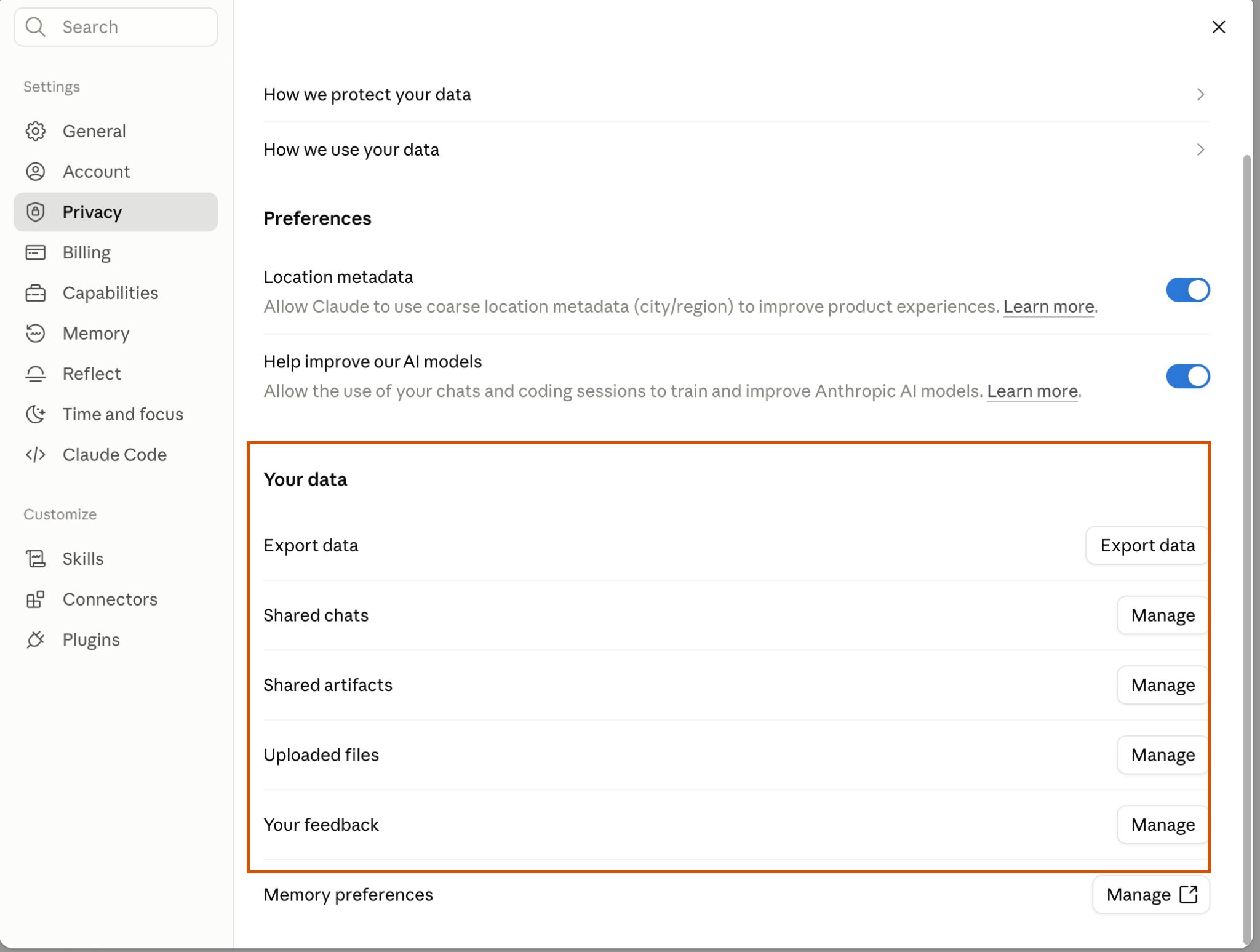
- Find the section labeled Your Data or look directly for Export Data.
- Click or tap the Export Data button.
- A confirmation window will pop up. Choose your preferences (such as exporting your full history) and confirm the request.
Mobile users: The Export data button sits under the Privacy tab, right below location and model preferences. Tap it, then tap confirm on the prompt.
Step 4: Check Your Email and Download Your Archive
- Claude will process your request and send an email to the address linked to your account. (This usually takes anywhere from a few minutes to a couple of hours depending on how much chat history you have.)
- Open your email inbox, look for an email from Anthropic with the subject “Your Claude data export is ready,” and click the download link.
Mobile users: Open your email app on your phone. Important: You must be logged into your Claude account on your browser for the link to work. The download link expires after 24 hours, so make sure to download it right away.
Step 5: Upload the Zip File Using the Link on Your Dashboard
- Once downloaded, you will receive a
.zipfile containing your data (including your conversations, project files, and memory logs structured as JSON files). - Open your dashboard from the Surf Extension and select Claude from the monthly tasks so that you can upload your data.